
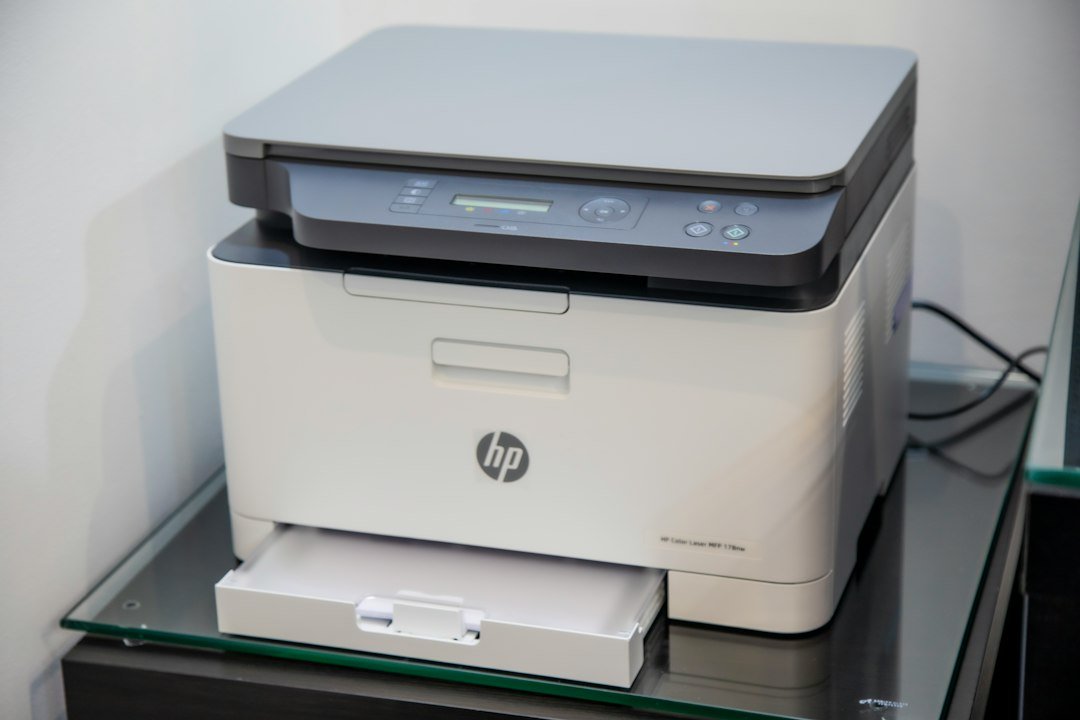
A PDF can look correct on screen but print too small, too large, or with content cut off. In many cases the file is not damaged. The PDF page size and the printer’s selected paper size simply do not match, or the wrong scaling option is being used.
First identify the symptom
If the edges are missing, the PDF may be larger than the printable area while Actual size is selected. If everything is unusually small, a scaling percentage or “Fit” setting may be reducing the page more than necessary.
Understand the main scaling options
Adobe Acrobat provides several page-sizing choices. Fit scales a page to the printable area of the selected paper. Actual size prints without scaling, which can crop content that does not fit. Shrink oversized pages reduces large pages but leaves smaller pages unchanged. Custom Scale lets you set a percentage manually.
Try this safe troubleshooting order
- Open the PDF’s Print dialog.
- Confirm the correct printer.
- Confirm the intended paper size, such as A4 or Letter.
- Choose Fit if the page needs to adapt to the printable area.
- Check the preview for missing edges or unexpectedly large margins.
- Print one test page before printing a long document.
A4 versus Letter matters
A4 and US Letter are different dimensions. A PDF created for one size can be rescaled or cropped when printed on the other, depending on the print settings. For forms, certificates, labels, or documents with content close to the edge, this difference is especially noticeable.
When to use Actual Size
Use Actual Size when physical dimensions are important and you know the PDF page fits the available paper and printable area. Examples can include measurement templates or precisely sized labels. Always verify with a test print because many printers cannot print to the absolute edge of the sheet.
When Fit is better
Fit is usually the simpler choice for ordinary documents when your priority is keeping all content visible. It may slightly enlarge or reduce the page, so it is not the right setting when exact physical scale matters.
Do not keep editing the PDF unnecessarily
If the document itself looks correct, test print settings before cropping, resizing, or recreating pages. Changing the file can introduce a second problem when the original issue was only the printer setup.
Still having trouble?
Try another PDF viewer or printer to separate a file problem from a printer-driver problem. If only one page is affected, inspect whether that page has a different size from the rest of the document. Mixed-size PDFs are common after merging files from different sources.
If your pages need structural cleanup, see the RevifyHub Organize PDF tools and our guide on merging PDFs with different page sizes.
Bottom line
Match the printer paper size to your document, understand what Fit and Actual Size do, inspect the preview, and test one page. Most “cut off” PDF print problems can be diagnosed without changing the document itself.
Reference: Adobe Acrobat: Adjust page size for printing PDFs.