
To convert text to DOCX, place the text in a word processor and save a real Word document. Renaming a TXT file changes its name, not its document structure. The useful part of the conversion is turning raw paragraphs into an editable file with clear headings, lists and tables that another person can work with.
This guide covers copied text and ordinary text files, including common encoding and spacing problems. It focuses on preparing a usable document rather than choosing an untested best converter. Examples are illustrative, and software menus or account requirements should be checked against the edition you actually use.
01 Decide whether you need DOCX or PDF
Choose DOCX when the recipient needs to edit the document in a compatible word processor. Choose a PDF delivery copy when the task calls for a fixed page presentation, and retain the editable source separately. Ask the recipient’s specification to settle the format rather than sending several unexplained versions.
For a fictional project brief, the team might need an editable DOCX for comments and a separately approved PDF for distribution. Give those files different names and record which is authoritative. The fact that both contain similar wording does not make them interchangeable working records.
02 Preserve the original text
Keep an untouched source file before you paste or import anything. Record where it came from and which revision it represents. If you are combining several notes, identify them while preparing the draft so that a questionable sentence can be checked against its source instead of reconstructed from memory.
Read the beginning and the final paragraph. Check important names, dates, identifiers and units. Remove accidental website navigation or duplicated copy, but preserve repetitions that belong to the document. This review reduces the risk of polishing an incomplete draft and discovering the missing section only after delivery.
03 Create a document in Word
Microsoft’s basic Word guidance covers creating and saving documents. A practical starting route is to create a blank document, paste the text, inspect it, and save it as a Word document using the available save or download command. Consult the platform-specific instructions when the interface differs.
- Open an approved word processor and create a blank document.
- Paste or import the intended text.
- Compare the imported beginning and ending with the source.
- Apply document structure and readable formatting.
- Save or download a DOCX copy under a distinct filename.
- Close and reopen that saved copy to inspect the result.
In a browser workflow, do not confuse an online document’s automatic save with downloading a local copy. Microsoft documents saving and downloading Word documents, including different output choices in Word for the web. Choose the Word format when the recipient asked for DOCX.
04 Resolve encoding problems at the input stage
Question marks, boxes or nonsensical characters can indicate an input problem. Microsoft’s text-encoding instructions explain how to choose a text file’s encoding when Word has not detected it correctly. Check the file against known words before committing to a conversion.
Do not replace unfamiliar characters by guessing. A name containing an accent or text written in another script may be correct even if you do not recognize it. If the original file is already corrupted, obtain an intact source where possible. Saving incorrect text in DOCX does not recover the intended characters.
05 Turn visual labels into real headings
A line written in capitals is not necessarily a heading in the document structure. Select the lines that introduce sections and apply the appropriate heading styles in the editor. Use a consistent hierarchy so a reader can distinguish a main section from its subsections without relying on color alone.
Read the headings as a short outline. If they repeat or fail to describe the following content, improve the labels before changing the page design. Keep a section’s heading with the correct paragraphs. Moving text during formatting can otherwise leave a plausible-looking heading above the wrong material.
06 Repair hard line breaks selectively
Text copied from a narrow page or email may contain a return after every displayed line. These returns can make a DOCX look like a stack of short fragments. Inspect paragraph boundaries and, where available, display formatting marks to distinguish ordinary wrapping from breaks stored in the text.
Join lines only where they belong to the same paragraph. Preserve addresses, lists, poetry and other content where a line break has meaning. A broad replace-all operation can erase useful boundaries. Work on a copy and compare a representative section before applying a cleanup pattern throughout a long document.
07 Convert space-aligned data into tables
Rows separated by repeated spaces may misalign when a different font or page width is used. If the content is a table, build actual rows and columns and place each value deliberately. Check that identifiers remain text when leading zeros matter, and keep units close to the values they describe.
For a fictional inventory note, use separate columns for item, quantity and location rather than inserting enough spaces to line up the headings. Read each row horizontally after rebuilding it. The appearance of straight columns is not proof that every value remained attached to the correct item.
08 Make lists behave consistently
Decide whether a list is ordered or unordered. A numbered procedure implies a sequence, while a set of options may not. Use the editor’s list controls rather than typing every number manually when that supports the document’s structure. Check indentation and continuation after moving or deleting items.
Review references to list items in the surrounding text. If an instruction says follow step four, verify which action is now step four. Automated numbering can update the displayed numbers, but it cannot decide whether your sentence still points to the intended instruction.
09 Use Markdown-aware conversion only for Markdown
If the source contains deliberate Markdown syntax, a converter that understands that syntax may save manual work. Pandoc’s getting-started documentation describes producing DOCX output. An illustrative command for a Markdown source named notes.md is shown below; verify your installation before using it.
pandoc notes.md -o notes.docxDo not feed arbitrary plain text through a Markdown workflow without reviewing the interpretation. Symbols and indentation may be treated as formatting. Our Markdown-to-PDF topic addresses a different final output, while the central task here is creating an editable Word document from the text you actually have.
10 Check page layout without hiding problems
Choose margins, font size and page orientation appropriate to the reader’s task. Inspect long headings and tables at page boundaries. Correct an awkward break in the source structure or layout instead of reducing every line to very small type. Readability matters more than making a draft appear artificially short.
Check the document on the application the recipient plans to use when practical. If a fixed page presentation is required, make a PDF delivery copy after the DOCX has been reviewed. Microsoft’s PDF export instructions describe that separate step for Word for the web.
11 Avoid an unnecessary PDF round trip
If you still have the original text, use it directly instead of printing it to PDF and converting that PDF back to Word. Each intermediate copy adds another stage that needs checking. Preserve the editable document as the place where corrections are made, and regenerate delivery copies from it.
When the PDF is genuinely the only available source, use our PDF-to-Word guide. If a converted table or paragraph has already become disorganized, our formatting troubleshooting guide explains a more focused repair workflow. Neither is a substitute for an intact original source.
12 Review the saved file as a handoff
Close the editor tab or document window and reopen the actual saved DOCX. Confirm that it opens as an editable document and contains the expected sections. Check a sample table, the final paragraph and any special characters. Inspect comments and revision information according to the intended audience.
A fictional handoff checklist might include the approved title, source revision, three required headings, one item code and the delivery filename. These are illustrative review points. Tailor the checklist to the document rather than treating a generic successful save message as proof that its content is complete.
For shared editing, give the recipient a short note identifying which sections need changes and which source values should be preserved. For example, ask for wording changes in the introduction while keeping an approved product code unchanged. This separates editorial freedom from factual data that requires another check. After their edits, compare the returned document with the handoff copy before generating any final PDF.
Frequently asked questions
Can I turn TXT into DOCX by changing the extension?
Use a real save or conversion command instead. A filename change does not perform the document creation described in this guide. Open the resulting file in the intended application and verify that it behaves as an editable Word document.
Why did the pasted document lose its formatting?
Plain text does not carry a complete word-processing design. Apply the headings, lists and tables needed by the new document. If a formatted original exists, return to it before rebuilding a complex layout from pasted text.
Is an online converter always necessary?
No. An approved installed editor can provide a suitable route. Browser services may also work, but check their current account, upload and document-handling requirements. Do not assume unlimited or private processing from a keyword that includes the word free.
Official references
- Microsoft basic Word, save/download, encoding and PDF export guidance.
- Pandoc getting-started documentation, linked above.
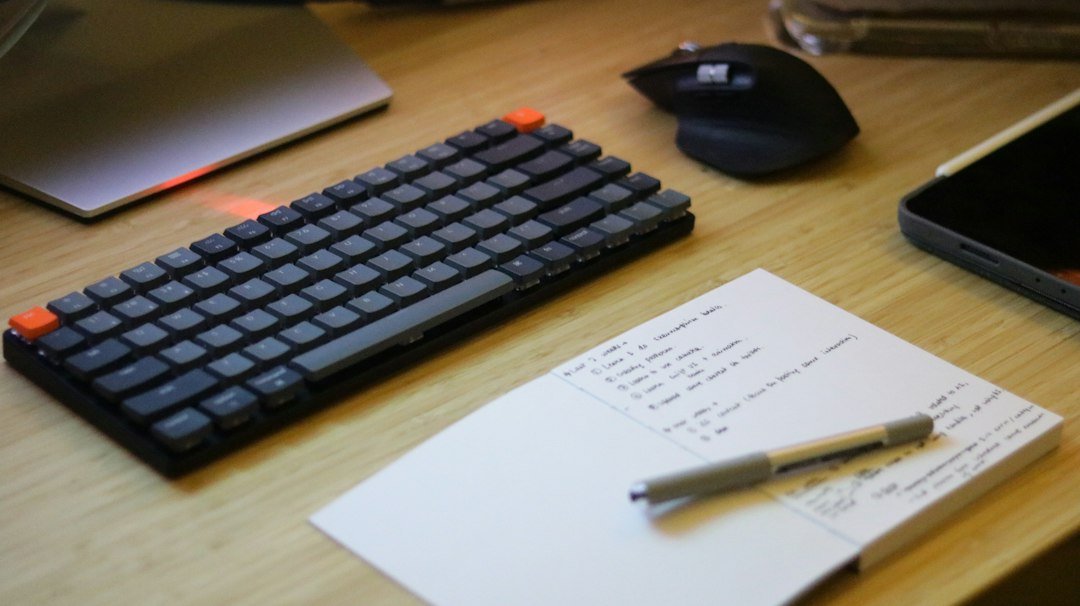
Featured photo: Sparsh Paliwal on Unsplash. Illustrative workspace photograph.