
A sideways photograph inside an otherwise upright PDF needs a different fix from a sideways page. If the heading and paragraphs are already correct, rotating the whole page makes those parts wrong. The useful operation is to select and rotate the image object while leaving the page and surrounding content in place.
This guide covers that specific task: rotating one picture inside a PDF, choosing between object editing and source-document editing, and checking the saved result. The examples are illustrative workflows, not claims that every PDF contains editable images or that every viewer supports editing.
01 Decide what actually needs rotation
Open the page at a comfortable zoom and read a line of ordinary body text. If the text, header and footer are upright but one photograph is sideways, inspect that photograph as an object. If everything is sideways together, use our guide to rotating PDF pages and saving their orientation instead.
A third case is an upright page containing a photograph of a sideways document. The photograph itself may be a single image object, or it may be part of a larger scanned page. The appearance does not tell you which. Enter the editor’s image-selection mode and inspect the selection boundary before applying any change.
For example, a project report might have an upright title, two paragraphs and a sideways equipment photo. Select the photo alone. A scanned paper form with all text and pictures captured together is different: selecting its image may select the entire sheet. Stop and choose a workflow that matches the selected content.
02 Preserve the original and define the expected result
Save a working copy before editing. Give it a distinct name such as report-photo-upright.pdf, and keep the original until the recipient accepts the result. Note the PDF page position, a visible heading and the picture you want to change. This is more reliable than remembering only a printed page number, which may differ from the viewer’s page position.
Write down what should remain unchanged: page count, text orientation, image location, caption and neighboring graphics. For a multi-page document, record whether the same photograph appears elsewhere. A correction on one page does not necessarily update another instance, and rotating every similar-looking image without checking can create new errors.
03 Rotate a selected image in desktop Acrobat
Adobe’s current desktop instructions describe opening the PDF, choosing Edit, selecting the image and using Rotate left or Rotate right in the editing pane. Each command turns the selected image by 90 degrees in the indicated direction. Click outside the image to apply the change, then save your working copy.
- Open the working copy in an Acrobat version that provides image editing.
- Enter Edit mode and click the target photograph.
- Confirm that the selection surrounds only the intended image.
- Use the image rotation control in the editing pane.
- Inspect the photograph, its caption and the nearest text.
- Save the corrected copy, close it and reopen it.
Do not confuse an image-editing control with Rotate View or a page-organizing command. Menus and available features can differ by version, subscription and document permissions. If the named control is absent, check your installed product’s current help rather than assuming a keyboard shortcut performs the same operation.
04 Use Acrobat on a phone or tablet
Adobe documents image rotation in its mobile editing workflow as well. Open Edit PDF, tap the image, and choose clockwise or anticlockwise rotation from its context menu. Finish with the checkmark on the documented Android workflow or Done on iOS. Confirm the available controls in your installed app before relying on the steps.
On a small screen, zoom in before selecting. A nearby logo, background graphic or text object can be easy to select accidentally. After applying the change, zoom back out to review the whole page. The image may look correct close up while covering a caption or extending beyond the usable page area.
05 Understand rotation, flipping and cropping
Rotation turns the picture around its center. Flipping mirrors it. Cropping changes which part is visible. These operations solve different problems, even when their toolbar icons look similar. If writing in the photograph is backward, a mirror operation may be relevant; a quarter-turn alone will not restore the direction of the letters.
Use readable details to judge the result: a label, a sign, a face or the horizon. Avoid judging only by the shape of the selection box. If a picture appears upside down, two quarter-turns may be appropriate. Check after each operation so you can undo a mistaken direction before making other changes.
If an edge disappears after rotation, inspect the picture’s placement and visible boundaries. Do not immediately crop away more content. A crop intended to hide a blank corner could also remove a date, instrument reading or signature that the recipient needs.
06 Repair the source document when available
If the PDF came from Word, PowerPoint, a publishing application or a report generator, correcting the image in that source can be easier to maintain. Open the original, locate the picture, correct its orientation, and export a fresh PDF. Then compare the entire export with the earlier document, not only the edited picture.
This is especially useful when the report will be revised again. A correction made only in the PDF can disappear the next time someone exports the unchanged source. Keep a note of the source change so another team member does not restore the sideways version during a later update.
For an illustrative training handout, the source might contain a sideways screenshot beside a numbered instruction. Rotate the screenshot, check its size and caption, then export. Review pagination afterward: making the picture taller can move nearby text even when its content remains unchanged.
07 If the editor selects the whole page
A scanned page can contain the photograph and surrounding text as one flattened image. In that situation there may be no separate picture object to rotate. Rotating the selected image can turn the whole scan, including paragraphs you wanted to keep upright.
First look for an editable source or a separate original photograph. If neither exists, consider rebuilding the affected page in a suitable document editor. Preserve all required text, captions and page identifiers, then compare the reconstruction carefully. Do not present a reconstructed record as an unchanged original.
Taking a screenshot, rotating part of it and placing it over the PDF is a fragile shortcut. It can hide content visually without changing underlying objects, and it can reduce clarity. For important records, request a corrected source from its owner rather than improvising a patch that cannot be verified.
08 Troubleshoot disabled or missing rotation controls
Check which application and mode you are using. A browser PDF viewer can display a file without offering object editing. A page organizer can rotate pages without editing individual pictures. Having a rotate button somewhere in the interface does not establish that it acts on the image you selected.
Read any permission or signature message before proceeding. If editing is restricted, ask the document owner for an authorized editable copy. Keep a signed original and agree on the correction process when signature validity matters. Our guide to PDF signatures after editing explains related verification questions.
If the object is not recognized as a normal image, avoid repeatedly clicking unrelated controls. It could be a different kind of page content or part of a larger composite. Try a small sample in a suitable editor or return to the source instead of applying changes across the entire document.
09 Keep the picture readable after rotation
Inspect the edited photo at normal reading zoom and at a closer view. Check fine labels, thin lines and small text. If the result is blurry, compare it with the original. Determine whether the loss appeared during image replacement, resizing or a later export rather than assuming rotation itself was the cause.
Use the original image file when replacement is necessary. Avoid repeatedly saving screenshots of earlier copies. Preserve aspect ratio when changing size so circles do not become ovals and a photograph does not look stretched. Reposition the image only as much as the layout requires, and check the caption afterward.
For diagrams or evidence photographs, readability depends on the details required for the task. A picture that looks attractive in a thumbnail may still hide a serial number or a scale marking. Verify those details explicitly before sharing the document.
10 Verify the saved PDF independently
- Close the editor and reopen the exact saved copy from its folder.
- Confirm the page count is unchanged.
- Inspect the target image and a page that should be untouched.
- Read the nearest paragraph and caption to confirm their orientation.
- Check that the picture remains inside the intended page area.
- Test important links or form fields near the edited region.
- If printing is required, inspect print preview and a sample output.
A second viewer can help reveal a file-selection mistake or a display difference. Use a clear delivery filename and open that file once more before attaching it to a message or selecting it in an upload form. Keep the master and delivery copy separate.
Frequently asked questions
Can I rotate a picture without rotating its PDF page?
Yes, when the picture is an individually editable object and your editor supports that operation. Confirm the selection before applying the change. A flattened scanned page may not contain a separate picture.
Does RevifyHub’s page organizer rotate individual images?
This guide does not claim object-editing support for the page organizer. Use a page organizer for page orientation and sequence. For a picture inside an upright page, use image-editing controls or correct the original source document.
Why did all the text turn sideways?
You may have rotated the page or a full-page scan. Undo the change, inspect what the editor selected and decide whether a separate image object exists.
Should I convert every page to JPG first?
That is usually unnecessary for one picture correction and changes the document workflow. Preserve selectable text and other needed features by editing the object or source when practical. If rebuilding a page is unavoidable, verify the complete replacement.
What should I send if editing is not permitted?
Keep the original and ask the owner for a corrected copy. Explain which page and image are affected and provide a neutral description of the orientation problem.
Official references
Adobe: Modify images in desktop Acrobat; Adobe: Modify images on mobile.
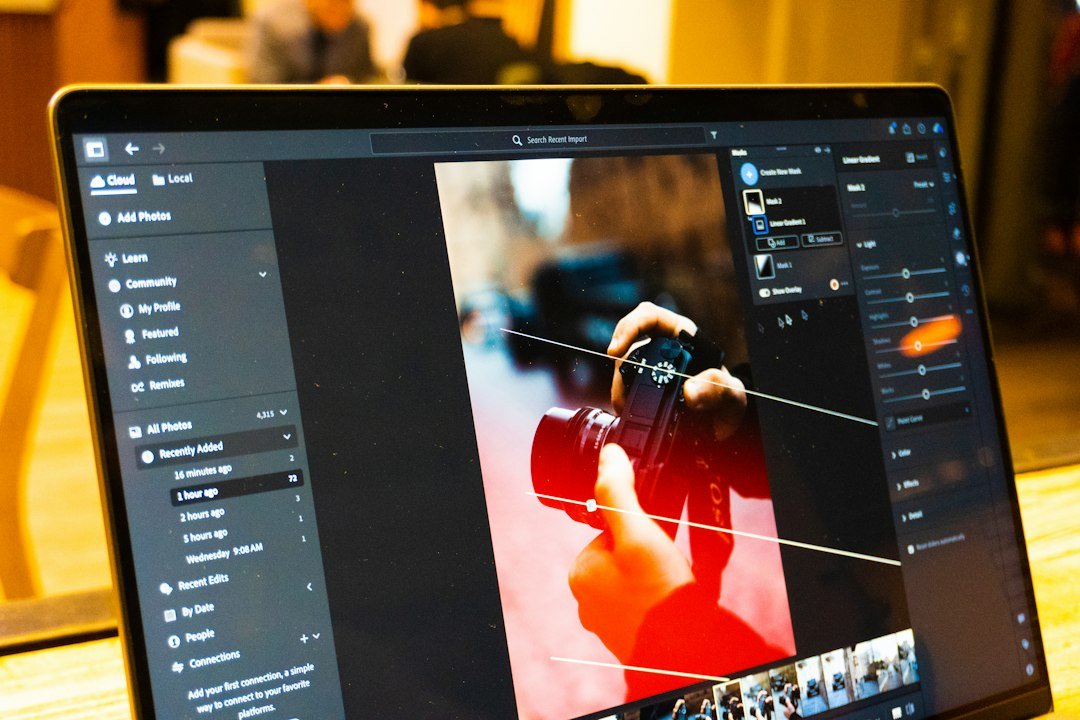
Featured photograph: Zulfugar Karimov on Unsplash, used under the Unsplash License. Illustrative workspace photograph, not an Acrobat screenshot.