
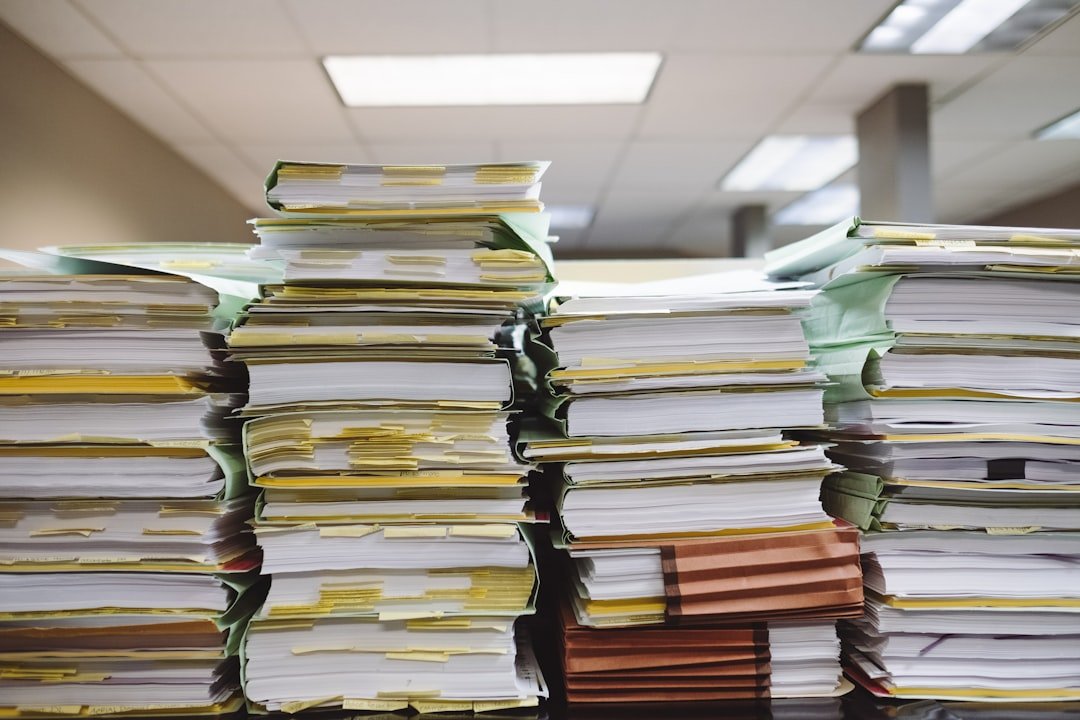
A long PDF can contain exactly what you need—but buried among dozens of pages you do not need to send, review, or store separately. Instead of copying text into a new document or taking screenshots, you can extract specific pages from a PDF and create a smaller PDF containing only the selected pages.
This is useful for reports, invoices, contracts, manuals, coursework, meeting packs, and any document where you need to share only a relevant section.
What does extracting PDF pages mean?
Page extraction means selecting one or more pages from an existing PDF and creating a new PDF from those selected pages. It is different from deleting pages: extraction is designed to create a separate document from the pages you choose. Adobe’s current Acrobat documentation describes extraction as selecting pages and saving them as a separate PDF.
When should you extract pages instead of splitting a PDF?
Use extraction when you know exactly which pages you want—for example pages 2, 4, and 7. Use splitting when your goal is to divide a larger PDF into several separate documents or sections.
For example, imagine a 60-page monthly report. Your manager only needs the executive summary on pages 3–6 and the sales table on page 42. Extracting those pages lets you make one focused file without rebuilding the report.
How to extract specific pages from a PDF
- Check the page numbers first. Open the PDF and note the exact pages you need. Pay attention to printed page numbers inside the document because they may differ from the PDF viewer’s page count.
- Open the RevifyHub Extract Pages tool.
- Select your PDF. Choose the document containing the pages you want.
- Select only the required pages. Review your selection before processing, especially when the document contains similar-looking pages.
- Create the extracted PDF. After processing, open the resulting file and confirm that the correct pages are present and in the intended order.
- Rename the new file clearly. A descriptive name such as Q3-report-selected-pages.pdf is easier to identify later than a generic filename.
How to avoid extracting the wrong pages
The most common mistake is relying only on page numbers printed in the document. A report may label its first content page as “1” even though the PDF viewer counts a cover and contents page before it. Always verify the thumbnail or visible content of the page before selecting it.
For sensitive or important documents, open the new PDF after extraction and check the first page, last page, and every page where the selection jumps—for example from page 6 to page 42.
Extract pages or remove pages: which is better?
If you want a new document containing a small selection from a larger PDF, extraction is usually the clearer workflow. If your goal is to keep most of the original document but remove a few unnecessary pages, use the Remove Pages tool instead.
What if the pages are in the wrong orientation?
If a selected page is sideways, correct its orientation before sharing the finished file. The Rotate PDF tool is intended for changing page orientation. After rotating, reopen the output and make sure charts, signatures, and tables are easy to read.
What if you need pages from several PDFs?
Extract the required pages from each source document first. Then combine the resulting files with the Merge PDF tool. This workflow is useful when building a compact reference pack from several longer reports.
A practical document workflow
A reliable workflow is: identify the required content → extract the pages → verify page order and orientation → give the new PDF a meaningful filename → share or archive the smaller document. Keeping the original PDF unchanged gives you a reference copy if you later discover that another page is needed.
Frequently asked questions
Does extracting pages automatically delete them from the original PDF?
Not necessarily. Extraction is commonly used to create a separate PDF from selected pages. Adobe’s Acrobat web documentation states that its extraction workflow creates a new PDF from the selected pages. Always keep your original document until you have verified the output.
Can I extract non-consecutive pages?
Yes, page extraction workflows can support selecting specific pages rather than only one continuous range. Adobe documents selecting individual or multiple pages for extraction. The exact controls depend on the tool you use.
Should I extract pages before compressing a PDF?
If you only need a small portion of a large document, extracting the required pages first can give you a more focused file. If the resulting PDF is still inconveniently large, you can then consider the Compress PDF tool.
Final checklist
Before sending the extracted PDF, confirm that you selected the correct pages, the page order makes sense, every page is readable, and the filename explains what the file contains. A quick verification can prevent sending an incomplete report or the wrong section of a document.
Related tool: Extract Pages from PDF